










How to Disable Automatic Game Clip Uploads on Xbox
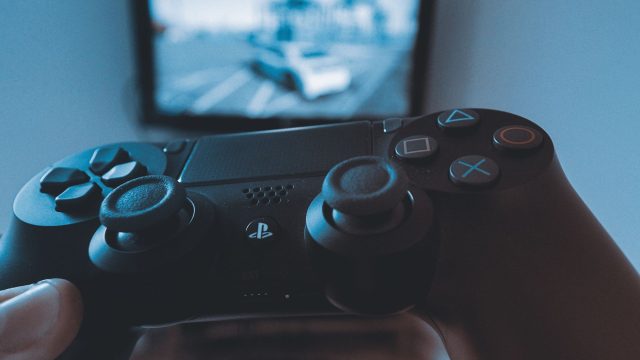
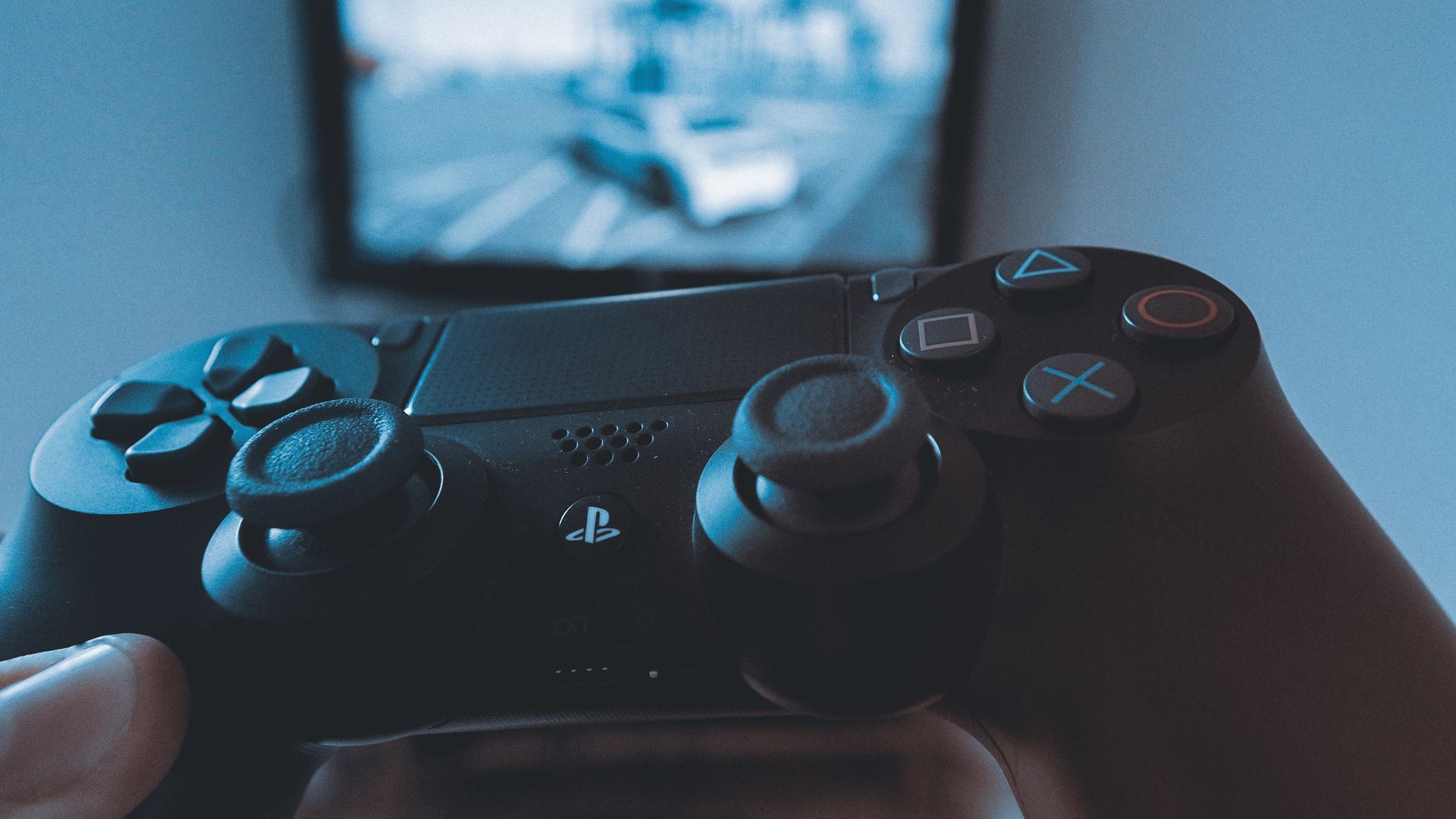
How to disable automatic game clip uploads on Xbox depends on which capture and sharing options are active. You can review these settings, stop new clips from uploading automatically, and delete recordings already stored on your console or account.
Menu names may vary slightly between Xbox consoles and software versions, but the same privacy controls are generally found in the console’s settings. Before changing anything, decide whether you want to block all uploads or only prevent automatic sharing while keeping manual captures available.
Review Xbox auto upload settings
Start by pressing the Xbox button on your controller to open the guide. Select Profile & system, then open Settings. Look for Preferences and choose Capture & share, or open the capture-related section shown on your console.
Review the options for automatic uploads, sharing, and storage. Turn off any setting that sends newly captured screenshots or game clips to Xbox services automatically. If your console offers separate controls for clips and screenshots, check both rather than assuming one switch covers every type of capture.
- Disable automatic uploading for game clips.
- Review automatic sharing to activity feeds or connected services.
- Check whether captures are being saved locally, online, or both.
- Confirm your choices before leaving the settings screen.
Be cautious with unsolicited promotions or messages that mention phrases such as TARGET $1,000 EXCLUSIVE GIFT CARD. They are unrelated to Xbox capture controls and should not be used as a reason to open a link or provide account details.
Stop Xbox game clips uploading after capture
After changing the main setting, make a short test recording. Open the guide, select the capture option, and record a brief clip. Then visit your recent captures and check its upload or sharing status. This helps confirm that the setting worked instead of relying only on the menu label.
If clips still appear online, check whether they were created before the change. Turning off automatic uploads normally affects future captures; it may not remove material that has already been uploaded. You should also review connected apps or services if you previously enabled automatic sharing outside Xbox.
Ignore pages promising a GOOGLE PLAY $750 GIFT CARD REWARD in exchange for signing in or changing account settings. Xbox privacy features should be managed through the console or official account controls, not through an unfamiliar third-party offer.
Delete existing clips and tighten privacy
Open the capture gallery or recent captures area and select clips you no longer want to keep. Use the available delete option, taking care to distinguish between removing a local copy and deleting an uploaded version. If a clip matters, save it to approved external storage before deleting it.
You can also review who may see your activity, shared captures, and profile information. Set visibility to the most private option that suits you, then check family and account permissions if the console is used by children or multiple people.
Do not trust an AMAZON $750 FREE GIFT CARD OFFER that asks for your Microsoft account password, verification code, or payment information. Genuine privacy changes do not require those details outside the normal Xbox sign-in process.
Confirm the change
Restarting the console is not usually necessary, but signing out and back in can help refresh account-related settings. Make another test capture and inspect its status. If automatic uploads continue, review the capture menu again and check for linked services or another account using the console.
A message advertising a MICROSOFT $1,200 DIGITAL GIFT CARD may also be fraudulent, even if it uses familiar branding. Keep capture settings separate from promotional claims, and report suspicious messages through the relevant platform tools.
Once automatic uploads are disabled, you can still capture clips manually when you want to save or share a particular gaming moment.